Mobile Apps
Adding tracking onto your Mobile App and ensuring you have a robust deep linking strategy is an important part of any affiliate campaign.
As Cookies are not supported in the Mobile App environment you will need to select one of the following Mobile Attribution Providers (MAPs) below:
Enable deep linking in your App by configuring for Apple Universal Links & Android App Links
Mobile Attribution Providers
AppsFlyer
Optimise can easily be integrated with AppsFlyer. Follow the steps below to configure your campaign:
Installs, In-app events and Rejected Installs
- Log in to your AppsFlyer account and select Configuration > Integrated Partners.
- Search Optimise and click to configure.
- Turn on Activate Partner and In-App Events Postback (Fig 1).
- Enter the Application Key provided under General Settings and also under In-App Events Settings (Fig 1).
- To add In App Events click Add Event (Fig 2):
- Select the SDK Event Name.
- Enter a Partner Event Identifier — this needs to be name for the event without whitespaces that you send to Optimise.
- Set Sending Option to This Partner Only.
- Set Send Revenue to "Values & revenue".
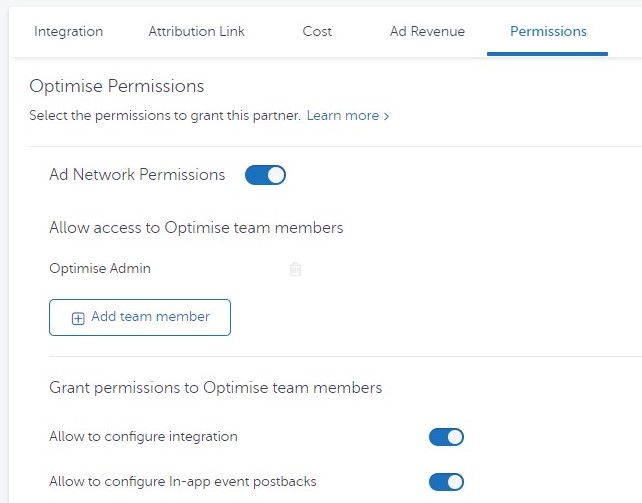
- Under Permissions enable (Fig 3):
- Allow to configure integration.
- Allow to configure In-app event postbacks.
Fig 1
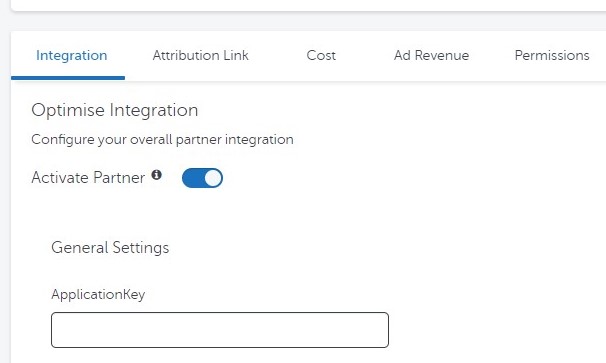
Fig 2
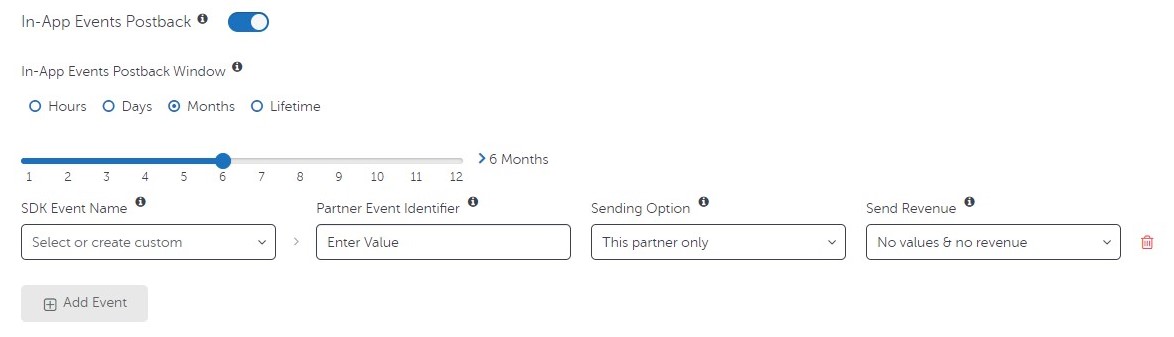
Fig 3
Adjust
Optimise can easily be integrated with Adjust. Provide a unique URL from your Adjust account to your Account Manager.
Passing postback URLs to Adjust
Adjust does not require a platform login for this workflow and does not provide pre-built integrations. Instead, include your postback URLs in the tracking link the advertiser provides by adding the following parameters.
-
install_callbackFull postback URL for install events. -
event_callback_{event_token}Full postback URL for an in-app event. Replace{event_token}with the Adjust event token the advertiser has configured. UseEX1to carry a product or category value if you plan to remap products downstream. Event names and tokens are defined by the advertiser, for exampleRegistration,Basket, orPurchase. -
rejected_install_callbackFull postback URL for installs rejected due to fraud. The rejection reason is provided by Adjust in the{rejection_reason}macro.
URL encoding rules
It is critical to URL-encode callback values correctly.
- Encode the full callback URL values that you pass to Adjust parameters such as
install_callback,event_callback_*, andrejected_install_callback. - Do not URL-encode the
{sskey}macro inside your click tracking URL, otherwise click-time macro substitution will fail. Use{sskey}, not%7Bsskey%7D, in the click URL path or query where your tracker performs macro replacement.
Examples
Replace placeholders with your actual values:
{APPLICATION_KEY},{MID},{PID},{AID}are your tracking platform values.{sskey},{app_id},{android_id},{os_version},{device_name},{gps_adid},{ip_address},{city},{currency},{revenue_float},{partner_parameters}are Adjust placeholders.- Always URL-encode the entire callback value when assigning to an Adjust
*_callbackparameter.
OneLink example
https://app.adjust.com/XXXXXXX?adgroup=ExampleGroup&creative=ExampleCreative
Encoded callbacks
Install callback
&install_callback=https%3A%2F%2Ftrack.example.com%2Fe%2Fmp%3FApplicationKey%3D{APPLICATION_KEY}%26MID%3D{MID}%26PID%3D{PID}%26REF%3DAdjust%26APPID%3D%7Bandroid_id%7D%26STATUS%3D1%26sskey%3D{sskey}%26EX1%3D%7Bapp_id%7D%26CURRENCY%3D%7Bcurrency%7D%26ANDROIDID%3D%7Bandroid_id%7D%26DEVICEOSVERSION%3D%7Bos_version%7D%26DEVICENAME%3D%7Bdevice_name%7D%26deviceip%3D%7Bip_address%7D%26EX3%3D%7Bcity%7D%26platform%3Dapp
In-app event callback
&event_callback_{event_token}=https%3A%2F%2Ftrack.example.com%2Fe%2Fmp%3FApplicationKey%3D{APPLICATION_KEY}%26MID%3D{MID}%26PID%3D{PID}%26REF%3DAdjust%26APPID%3D%7Bpublisher_parameters%7D%26STATUS%3D%7Brevenue_float%7D%26sskey%3D{sskey}%26EX1%3D%7Bapp_id%7D%26ANDROIDID%3D%7Bandroid_id%7D%26DEVICEOSVERSION%3D%7Bos_version%7D%26DEVICENAME%3D%7Bdevice_name%7D%26GoogleID%3D%7Bgps_adid%7D%26deviceip%3D%7Bip_address%7D%26EX3%3D%7Bcity%7D%26platform%3Dapp%26EventData%3D%7Bpartner_parameters%7D
Rejected install callback
&rejected_install_callback=https%3A%2F%2Ftrack.example.com%2Fe%2Fmp%3FApplicationKey%3D{APPLICATION_KEY}%26MID%3D{MID}%26PID%3D{PID}%26REF%3DAdjust%26APPID%3D%7Bpublisher_parameters%7D%26STATUS%3D0%26sskey%3D{sskey}%26EX1%3D%7Bapp_id%7D%26ANDROIDID%3D%7Bandroid_id%7D%26DEVICEOSVERSION%3D%7Bos_version%7D%26DEVICENAME%3D%7Bdevice_name%7D%26GoogleID%3D%7Bgps_adid%7D%26deviceip%3D%7Bip_address%7D%26EX3%3D%7Bcity%7D%26RejectReason%3D%7Brejection_reason%7D%26platform%3Dapp
iOS deep links with Adjust OneLink
JavaScript Universal Links overview
JavaScript Universal Links (JSR) are used when a click and HTTP redirect occur outside supported environments, for example in many email clients or certain iOS contexts. Without JSR, Universal Links can fail and send all users to the App Store, even when the app is installed.
Adding JSR parameters for iOS 11 and later
-
Start with your Universal Link.
For example:https://ab12.adj.st/?adjust_t=abc123 -
URL-encode the entire Universal Link.
-
Append the encoded value to the JSR endpoint:
https://app.adjust.com/jsr?url=
Result
https://app.adjust.com/jsr?url=https%3A%2F%2Fab12.adj.st%2F%3Fadjust_t%3Dabc123
Targeting iOS 10.3 and earlier
To support users in Safari webviews or iOS versions earlier than 11, add the following flag to the JSR Universal Link:
adjust_deeplink_js=1
The flag provides a fallback via a custom scheme. Users without the app are directed to the store. Users with the app are prompted to open the page in the app.
Result
https://app.adjust.com/jsr?url=https%3A%2F%2F6s45.adj.st%2F%3Fadjust_t%3D1uhwo6%26adjust_deeplink_js%3D1
India regional domain
When targeting India, use Adjust’s India domain:
https://app.adjust.net.in
For example:
https://app.adjust.net.in/XXXX?adgroup=XXX&idfa=XXXX&gps_adid=XXX&android_id=XXXX
Postback aliases
Use concise aliases in Adjust so that your tracking platform can route events consistently.
| Event name | Alias | Postback template |
|---|---|---|
| Install | optimise_install | https://track.omguk.com/e/mp?ApplicationKey={APPLICATION_KEY}&REF=Adjust&Ex1=Install&GoogleID={gps_adid}&deviceip={ip_address}&platform=app&IFA={idfa}&Action=Install |
| In-app registration | optimise_registration | https://track.omguk.com/e/mp?ApplicationKey={APPLICATION_KEY}&REF=Adjust&GoogleID={gps_adid}&deviceip={ip_address}&platform=app&IFA={idfa}&Action=registration&Ex1={event}&EventData={partner_parameters} |
| In-app purchase | optimise_purchase | https://track.omguk.com/e/mp?ApplicationKey={APPLICATION_KEY}&REF=Adjust&CUR={currency}&TransactionValue={revenue_float}&GoogleID={gps_adid}&deviceip={ip_address}&platform=app&IFA={idfa}&Action=Sale&Ex1={event}&EventData={partner_parameters} |
| Rejected install | optimise_rejected | https://track.omguk.com/e/mp?ApplicationKey={APPLICATION_KEY}&REF=Adjust&STATUS=0&EX1=rejectinstall&ANDROIDID={android_id}&DEVICEOSVERSION={os_version}&DEVICENAME={device_name}&GoogleID={gps_adid}&deviceip={ip_address}&RejectReason={rejection_reason}&Action=reject&EX2=reject |
Sample link with Adjust callbacks (Adjust-hosted OneLink)
If you are hosting on Adjust, use the Adjust OneLink domain and path, keeping the same callback structure. Replace placeholders and URL-encode callback values as before.
https://app.adjust.com/XXXXXXX
?adj_t=1abcdef
&adj_campaign=My+App+Acquisition
&adj_adgroup={AID}
&adj_click_id={sskey}
&adj_install_callback=optimise_install%26MID%3D{MID}%26PID%3D{PID}%26AID%3D%7BAID%7D%26sskey%3D%7Bsskey%7D
&event_callback_r5xw5n=optimise_registration%26MID%3D{MID}%26PID%3D{PID}%26iCat%3DContactDetailsSubmission%26AID%3D%7BAID%7D%26Ex1%3DContactDetailsSubmission%26sskey%3D%7Bsskey%7D
&event_callback_ospxm8=optimise_registration%26MID%3D{MID}%26PID%3D{PID}%26iCat%3DWelcomeScreen_Completion%26AID%3D%7BAID%7D%26Ex1%3DWelcomeScreen_Completion%26sskey%3D%7Bsskey%7D
&event_callback_8osc8d=optimise_registration%26MID%3D{MID}%26PID%3D{PID}%26iCat%3DReview2_Completion%26AID%3D%7BAID%7D%26Ex1%3DReview2_Completion%26sskey%3D%7Bsskey%7D
Sample link with Adjust callbacks (non-Adjust host, e.g. Branch go.link)
Below is a sanitised sample to illustrate structure. Replace identifiers, tokens, and domains with your own. Encode callback values as shown.
https://brand.go.link
?adj_t=1abcdef
&adj_campaign=My+App+Acquisition
&adj_adgroup={AID}
&adj_click_id={sskey}
&adj_install_callback=optimise_install%26MID%3D{MID}%26PID%3D{PID}%26AID%3D%7BAID%7D%26sskey%3D%7Bsskey%7D
&event_callback_r5xw5n=optimise_registration%26MID%3D{MID}%26PID%3D{PID}%26iCat%3DContactDetailsSubmission%26AID%3D%7BAID%7D%26Ex1%3DContactDetailsSubmission%26sskey%3D%7Bsskey%7D
&event_callback_ospxm8=optimise_registration%26MID%3D{MID}%26PID%3D{PID}%26iCat%3DWelcomeScreen_Completion%26AID%3D%7BAID%7D%26Ex1%3DWelcomeScreen_Completion%26sskey%3D%7Bsskey%7D
&event_callback_8osc8d=optimise_registration%26MID%3D{MID}%26PID%3D{PID}%26iCat%3DReview2_Completion%26AID%3D%7BAID%7D%26Ex1%3DReview2_Completion%26sskey%3D%7Bsskey%7D
Notes and references
- Use
{revenue_float}to pass revenue as a decimal value.{revenue}returns an integer in cents. For example, 12.00 becomes1200with{revenue}and12.00with{revenue_float}. - To pass an order ID or custom fields, include
&EventData={partner_parameters}then map keys to fields in your tracking platform.
Adjust placeholder reference:
https://partners.adjust.com/placeholders/
JSR Universal Links documentation:
https://help.adjust.com/en/article/direct-links-for-ios#create-javascript-universal-links
Deeplinks and JSR details
Branch
Optimise can be integrated with Branch. Provide a unique URL from your Branch account to your Account Manager.
Click URL
Use a Branch link that includes Optimise parameters. Replace placeholders with real values.
https://brand.app.link/XXXXX?%243p=a_optimise_media&%24aaid=&%24idfa=&mid={MID}&pid={PID}&aid={AID}&uid={UID}&uid2={UID2}&~secondary_publisher={SECONDARY_PUBLISHER}
{MID},{PID},{AID}are the advertiser, product/campaign, and publisher identifiers used by Optimise.%24aaidand%24idfaare Branch standard parameters for device IDs.- Keep values URL-encoded where required.
Postback: Install
Configure Branch to call your Optimise endpoint on install. The example below uses Branch template variables. Replace the tracking domain and ApplicationKey with your own values.
https://track.omguk.com/mobileapptracking/TrackingService.svc/track?ApplicationKey={APPLICATION_KEY}&STATUS=${ (event_data.revenue)! }&CURRENCY=${ (event_data.currency)! }&sskey=${ (last_attributed_touch_data.~click_id)! }&EX1=${ (name)! }&DEVICEOSVERSION=${ (user_data.os_version)! }&DEVICEIP=${ (user_data.ip)! }&GoogleID=${ (user_data.aaid)! }&IFA=${ (user_data.idfa)! }&APPVERSION=${ (user_data.app_version)! }&MID=${ (last_attributed_touch_data.mid)! }&PID=${ (last_attributed_touch_data.pid)! }&EX3=${ (user_data.os)! }&APPID=${ (event_data.transaction_id)! }&EX4=${ (user_data.geo_city_en)! }&ref=Branch&ua=${ (user_data.user_agent)! }&AID=${ (last_attributed_touch_data.aid)! }&UID=${ (last_attributed_touch_data.uid)! }
Postback: In-app event
Use the same structure for in-app events. The example includes an EX5 flag indicating whether this is the user’s first event.
https://track.omguk.com/mobileapptracking/TrackingService.svc/track?ApplicationKey={APPLICATION_KEY}&STATUS=${ (event_data.revenue)! }&CURRENCY=${ (event_data.currency)! }&sskey=${ (last_attributed_touch_data.~click_id)! }&EX1=${ (name)! }&DEVICEOSVERSION=${ (user_data.os_version)! }&DEVICEIP=${ (user_data.ip)! }&GoogleID=${ (user_data.aaid)! }&IFA=${ (user_data.idfa)! }&APPVERSION=${ (user_data.app_version)! }&MID=${ (last_attributed_touch_data.mid)! }&PID=${ (last_attributed_touch_data.pid)! }&EX3=${ (user_data.os)! }&APPID=${ (event_data.transaction_id)! }&EX5=<#if (first_event_for_user)?? && first_event_for_user>1<#else>0</#if>&EX4=${ (user_data.geo_city_en)! }&ref=Branch&ua=${ (user_data.user_agent)! }&AID=${ (last_attributed_touch_data.aid)! }&UID=${ (last_attributed_touch_data.uid)! }
Implementation guidance
- Use HTTPS for postbacks where possible.
- Ensure the endpoint accepts and logs all required parameters before enabling in production.
- Keep Branch templating intact; Branch substitutes variables at runtime.
- If your tracker relies on click-time macro substitution (for example
{sskey}in click URLs), do not URL-encode the curly-braced macro in the click URL itself.
Branch references
- Grant an agency access: https://help.branch.io/using-branch/docs/add-agency-to-your-account
- Basic postback configuration: https://help.branch.io/using-branch/docs/basic-postback-configuration
Offline Tracking for Mobile
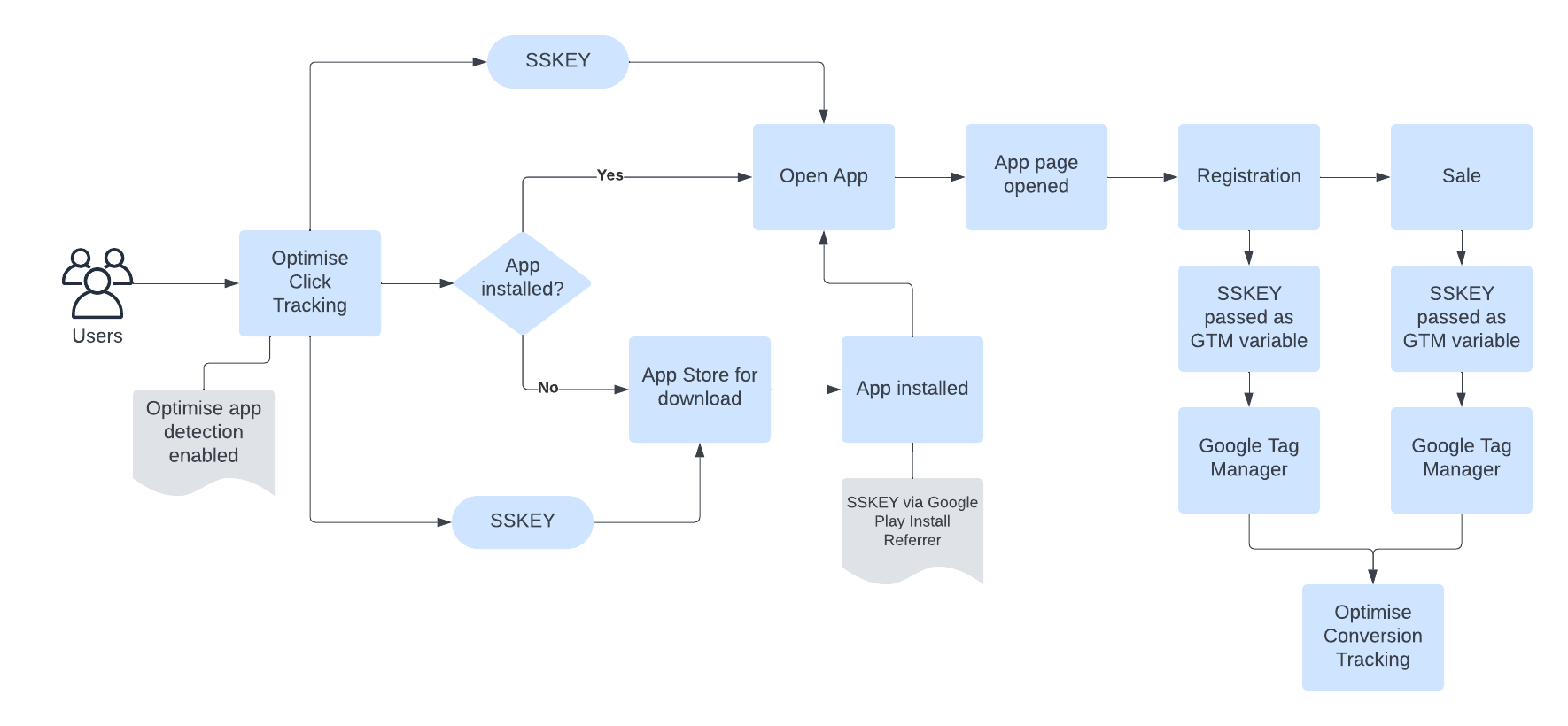
If you are unable to implement tracking into your mobile app, Optimise offer a solution that enables the user’s Mobile Phone number (encrypted) to be captured and a conversion to be tracked. This would be implemented as shown below:
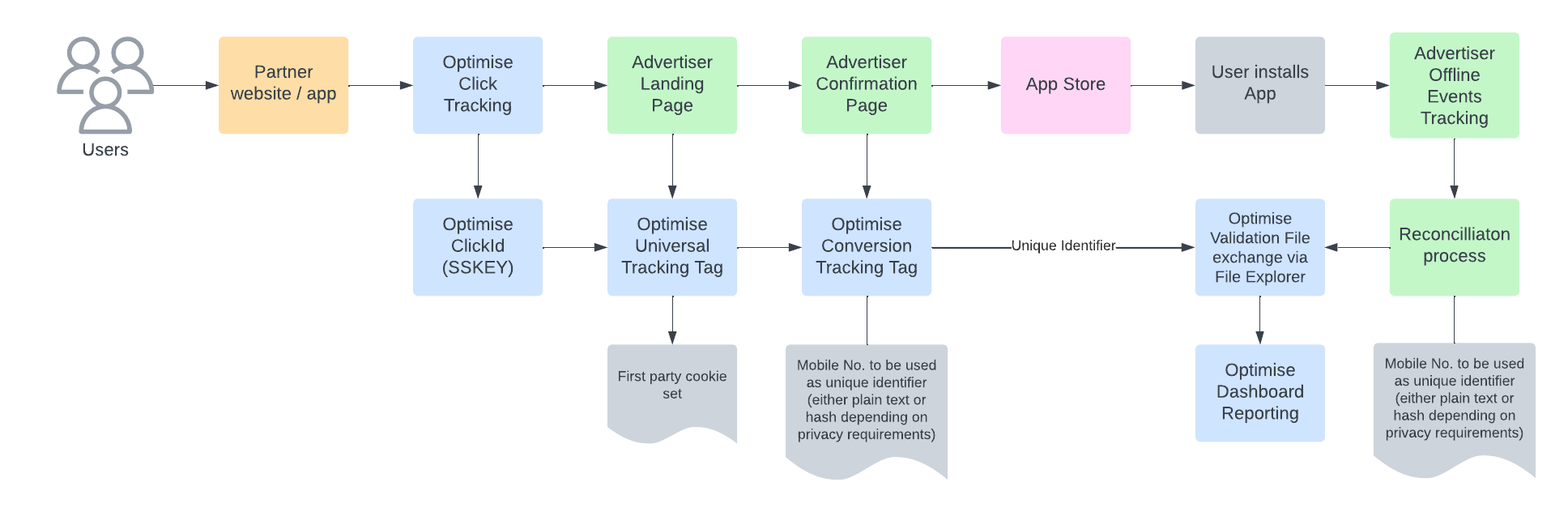
For further details please reach out to your Optimise Performance Manager.
Server-to-Server (S2S)
Optimise Tracking for mobile apps can be implemented via Server-to-Server (S2S) when directing a user to an existing app installation on their device. For more details, please refer to our S2S documentation. Additional parameters, such as Basket Item Tracking, may be appended to the URL as per the Conversion Tag examples.
Google Tag Manager for Mobile
Optimise tracking pixels can be integrated using Google Tag Manager for Mobile. You will need to use Google Play Store's Install Referrer API to retrieve the sskey from the referrer data.
Tracking should be implemented as shown below: