Manage Account
Click the  icon in the top right and select Settings from the menu.
Update your contact details including name, email & phone numbers. The email address is also your user id.
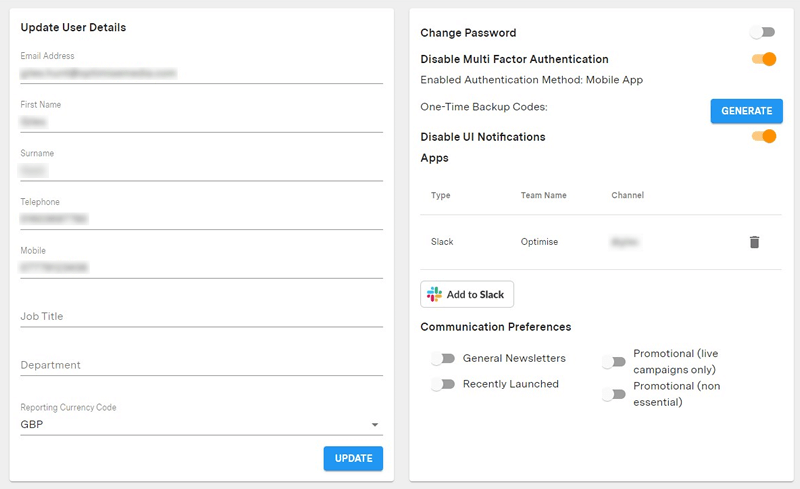
Change Password
To change your password:
- Toggle the switch and press update
- Enter your existing password
- Choose your new password
Multi-factor authentication
You can elect to protect your account with Multi-factor authentication (MFA). We strongly recommend applying this to your account to strengthen your account security.
See the Multi-factor authentication guide for more info.
Reporting Currency Code
Select the default currency that your Dashboard and Reports should be displayed in. This will perform a real-time currency conversion.
Apps
Your account can be linked to third-party apps such as Slack for receiving Alerts. You can manage your linked apps here.
To delete a linked App click the Delete icon.
Multi Account Access
A user of Optimise Dashboard can access multiple Advertiser and/or Publisher accounts using a single email address login.
It is only possible to have 1 user account with Optimise per email address.
To request access to an additional Advertiser or Publisher account ask the Administrator of that account to add you.
After logging in, select an account from the list. You can switch accounts using the account switcher next to the logo at the top of the Dashboard.
Multi Account Access grants access to Group View for multi-account reporting.
Communication Preferences
Use the options here to set your preferences for how Optimise & Advertisers can communicate with you.
Campaign Recommendation Communications
As a Publisher, you can define how often you want to receive campaign recommendations—daily, weekly or monthly—and the maximum number of recommendations included in each email.
Account ID: MID or AID
To copy your MID (Advertiser ID) or AID (Publisher ID) from your account:
- Click on the user menu in the top right corner
- Click the copy icon next to the Account ID

Login History
At the bottom of the User Settings page, you can view your login history. If you notice anything suspicious, change your password and notify us through a support ticket.
Security Controls
As a security measure, we may require an email verification code when we detect logins from inconsistent locations. The code will be sent to the user's registered email address.
We recommend that each user has their own unique account as opposed to using shared accounts to avoid access limitations.